Sunday, February 23, 2014

How to run Android Applications on your windows Desktop (BlueStacks)

How to run Android Applications on your windows Desktop

Don't you have a favorite applications on your Android phone / Tab and you wish you could run it on your windows desktop. Well you can. ;-).

Bluestacks Android Desktop.
So how do you do it ?
1) Install the application from http://www.bluestacks.com/bstk-download-success-2.htm 

Click on Download xp visa windows green icon
Install the downloaded Application called  BlueStacks-SplitInstaller_native.exe

Here is the direct URL http://cdn.bluestacks.com/public/beta-1/BlueStacks-SplitInstaller_native.exe

You will the see this screen. (except conditions and select continue)
Select continue


You will need the first two options to install your favorite application on the BlueStacks desktop.

Installing the BlueStacks form internet. (some flashing adverts while installing)
I the got a worming about screen driver that was outdated and needs to be updated.

Graphics Warning menu

Installing Graphics driver.

Graphics driver install menu
After you have installed the application you should have a menu item in your start menu Start BlueStack

Run the Start BlueStacks menu item

You will then get a Android Tab desktop on your screen.

BlueStacks Tab Desktop

Wait a white the Desktop connects to the internet to download the default applications.

Install your Apps 

Enable your Google sink and apps-store functionality in stetting.

Install your favorite applications. (in my case Pocket RXTX from app store)


Here is my favorite webSDR Application where I listen to my HF stations on my desktops.

Pocket RXTX SDR radio on your virtual TAB
Here is a link to this app https://play.google.com/store/apps/details?id=ro.yo3ggx.rxtx&hl=en

If you want to connect you RTL dongle or VNA device to your PC and make it work you can here is the details.

Because Bluestacks currently do not support the USB or Bluetooth devices, you need a COM redirector application, a trail version of tcp2com program which can be downloaded for free from here:
http://www.astrogeeks.com/AstroGeeks/COM2TCP/download.html (a trial for 45 days).
Some other free redirectors are available too.

Then you need to run BlueVNA in WiFi mode and connect to the local host, using the port configured in the COM redirector.

Monday, February 17, 2014

Installing Zadig USB driver for RTL_dongle on windows 7

Installing Zadig USB driver for RTL_dongle on windows 7

Download the Zadig USB driver file from http://sourceforge.net/projects/libwdi/files/zadig/
If you don't have 7zip unzip program also download it from http://www.7-zip.org/
Here is where I install the 7Zip program


Here is where I use the 7zip program to unzip Zadig file that I have downloaded.


Unzip die the zadig_v2.0.1.160 (1).7z file and you should be left with the following file Zadig.exe
Plugin your RTL USB dongle.

I then Ran the Zadig.exe program


Select the Option menu and then all Devices.


Then select the Buil-in Interface (interface 0) and then replace driver or install driver


You will the get a warning  select the Install driver software anyway.


You should see a dialog box saying the driver was installed successfully,


Then unplug the USB RTL dongle wait for 5 seconds and reconnect the dongle.

Download the ExtIO_RTL.dll and copy it to the sdrSharp directory. ( I think the new SDRSharp version comes with the DLL) https://github.com/josemariaaraujo/ExtIO_RTL/raw/master/Release/ExtIO_RTL.dll

If you haven't installed the sdrSharp program before follow my instructions here http://zr6aic.blogspot.com/2014/01/how-to-install-sdr-sdrsharp-on-windows.html in how to do that.

If you have installed the SDRSharp software before then just select the RTL-SDR/USB in the option menu and you then  select start.
if all went well the SDR# should work now. ;-) "Have fun"


Here is the video of the SDR# connecting to RTL_TCP on Raspberry Pi.


Wednesday, February 5, 2014

New Amateur radio Cubesats will be launched from the International Space Station on Thursday, February 6, 2014.

New Amateur radio Cubesats will be launched from the International Space Station on Thursday, 6 February 2014. ( 18:07 UTC) new date (February 28 at 07:30 UTC)

1) LituanicaSat-1 (

  • Onboard VGA camera
  • GPS receiver.
  • UHF CW beacon 100mW, 9k6 AX25 FSK telemetry TX 2 watts.
  • FM Mode V/U transponder 150mW Voice Repeater.
  • 145.950 Mhz Uplink FM transponder.
  • 435.180 MHz Downlink FM.
  • 145.850 MHz AX25 Uplink.
  • 437.550 MHz AX25 Downlink.
  • 437.275 MHz CW Beacon .
  • https://www.facebook.com/Lituanicasat1
2) LitSat-1


  • Beacon/TLM down link 145.850 MHz
  • Beacon RF packets are AX.25 UI frames https://www.tapr.org/pub_ax25.html Main parameters of the beacon frames are: TX baud rate 9600 bps (G3RUH), repetition period ~4.5s, beacon duration ~0.5 s, source call address – TNC, destination call address – LY1LS.
Linear Transponder details
  • Uplink 435.150 MHz LSB 
  • Downlink  145.950 MHz USB 
  • Bandwidth ±15 kHz from centre
  • CW beacon   435.1375 MHz (LY1LS/B)
  • Normal mode – transponder, beacon OFF
  • 437.550 MHz AX25 Uplink.
  • 145.850 MHz MHz AX25 Downlink.
  • LitSat-1 on Facebook https://www.facebook.com/palydovas

3) UAPSAT


4) ArduSat-2


5) UKube-1
The Ukube-1 Satellite was lunched on 8 July at 18:32:42 UTC. kep details at http://www.dk3wn.info/p/?p=46812UKube-1 CW was confirmed over Europe ;-)


UKube-1 communications subsystem:
• Telemetry downlink 145.840 MHz
• FUNcube subsystem beacon 145.915 MHz
• 400 mW inverting linear transponder for SSB and CW
- 435.080 -435.060 MHz Uplink
- 145.930 -145.950 MHz Downlink
• 2401.0 MHz S Band Downlink
• 437.425-437.525 MHz UKSEDS myPocketQub Downlink


Tuesday, January 28, 2014

How to install SDR# SDRsharp on Windows

How to install SDR# SDRsharp on Windows


Please note you need the Zadig driver for the RTL dongle to work.

Goto this url to download the SDRSharp application by selecting the
SDR Software Package  http://airspy.com/download/ 
If you want to install the the RTL USB Zadig driver here is the link http://rtlsdr.org/softwarewindows

I also have added a google drive link with driver and SDR# software https://drive.google.com/open?id=0B5zipGz4ccuASC1Cd0RQMGx6Qm8

Please note you will need internet access when installing the SDR# software as it install the dependency files itself.

Select the SDR# RTLSDR Plugin to download.

Browse the directory where you have downloaded the sdrsharp-x86.zip file and unzip the file.


Unzip the file SDR-install.zip

You should have new directory next to the sdrsharp-x86.zip file called sdrsharp-x86.
Browse inside the directory sdrsharp-x86 and tun the bat file install-rtlsdr.bat
(see screenshot below)


Black DOS console. (you need internet connection during this bat instillation as more files get download during this procedure)

Install.bat console installing application
The console will close when its complete.
There should be a new directory called sdrsharp.

If you use the latest SDRSarp the procedure is a bit different see screenshot below.
Run the Install-rtlsdr.bat to install the drivers.


Goto this directory and run the application called SDRSharp.exe (double clicking on it)

goto sdrsahap directory and run SDRSharp.exe

The SDRSharp application should be started.
Depending on how you connect to the RTL dongle you should select the correct option in the "Other sound card" pull down menu next to the play button.
There should be two options.
1)RTL-SDR/USB (This option is if you have the USB driver installed and the rtl dongle is connected directly on to PC or laptop port) zadig usb driver http://rtlsdr.org/softwarewindows
2)RTL-SDR/TCP (This option is when you want to connect to a remote RTL_TCP server and you then need to enter the server IP and Port) default is the same server 127.0.0.1:1234


If all went well you can now hit the Play button and you should here sound.
Mite have to set the volume in you sound mixer properties.


Monday, January 20, 2014

HF Antennas impedance matching.

HF Antennas impedance matching.

Antenna BALUNs and UNIONs
Generally a balun consists of two wires (primary and secondary) and a toroid core: it converts the electrical energy of the primary wire into a magnetic field. Depending on how the secondary wire is done, the magnetic field is converted back to an electric field..

Balun
A Balun is a device that joins a balanced line (one that has two conductors, with equal currents in opposite directions, such as a twisted pair cable) to an unbalanced line (one that has just one conductor and a ground, such as a coaxial cable). A balun is a type of transformer: it's used to convert an unbalanced signal to a balanced one or vice versa. Baluns isolate a transmission line and provide a balanced output.

In a Balun, one pair of terminals is balanced, that is, the currents are equal in magnitude and opposite in phase. The other pair of terminals is unbalanced; one side is connected to electrical ground and the other carries the signal.

The Baluns (transformer tipe) also translate impediment  differences. (450Ohm to 50m )

Some impedance matching guide lined.

  1. A (1 to 1) BALUN is mostly used with center taped Dipoles. (50 Ohm Antenna to 50 Ohm Coaxial cable)
  2. A (2 to 1) BALUN is mostly used with HF quads and loop Antennas (100 Ohm Antenna to 50 Ohm Coaxial cable)
  3. A (4 to 1) BALUN is mostly used with Off center dipoles, Windom and Sky wire loops 80m and 160m band  (200 Ohm Antenna to 50 Ohm Coaxial cable)
  4. A (6 to 1) BALUN is mostly used with Off center dipoles that is installed higher than about 25m. (300 Ohm Antenna to 50 Ohm Coaxial cable) you could also use 300 ohm robin cable and the mach it to 50 ohm.
  5. A (9  to 1) BALUN is mostly used with end fed long wire antennas.  (450 Ohm Antenna to 50 Ohm Coaxial cable) you could also use 450 ohm ladder line and the mach it to 50 ohm.

50 Ohm coaxial cable vs 450 Ohm or 600 Ohm ladder or window line?


Coaxial cable 50,75 or 92Ohm


Ladder feed line

The primary advantages of coax with respect to ladder line are
  1. Most transceivers are equipped with 50 ohm coax connectors, whereas using ladder line requires a Balun or balanced tuner
  2. Coax cable is not affected by nearby metal objects, unlike ladder line
  3. The impedance of coax doesn't change when it rains or snows, unlike ladder line
The primary advantages of ladder line with respect to coax are

  1. Lower loss at frequencies of 28 MHz and up words
  2. Easier to make connections
  3. Can drive a balanced antenna (e.g. a dipole) without a Balun


Saturday, January 18, 2014

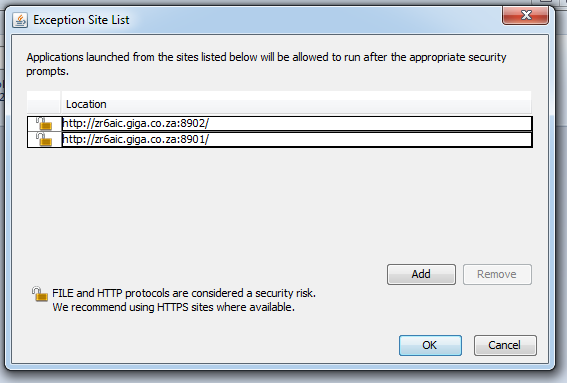
Application Blocked by security settings (Java error when running applets in Browser)

Application Blocked by security settings


I have upgraded my java and the java plugin in my Chrome browser and then tried to use my webSDR website that includes applets in its content and then got this error above.

All the Google links was referring to adding the webSDR link in
Control Panel > java > Security > Edit site list. (add webSDR url http://zr6aic.giga.co.za:8901/) and  (add webSDR url http://zr6aic.giga.co.za:8902/)

Well,  this did not work for me (the default java control panel java console did not have the security options to add site links)
(I used windows 7 with a Chrome browser) and  the java was update to java 7 update 3 (build 1.7.0_03-b05) when this error above appear. :-(

I had to run the application called "Configure java"

By entering it in my start menu search and then executing the application
Configure java


I then had the application tab option as described above to added the site links.
Click on the Security tab 


Click on the Security tab and add your web url in the edit site list


Click on ok and restart you browser  and try the url with java applet.


You will then get another message box "Do you want to run this application?"


Just accept and click run and your website with applet content should now work.

hope this help


Thursday, December 26, 2013

New Satellite planed for Launch in January 2014 from ISS

LituanicaSAT-1 with amateur radio FM transponder to deploy from ISS.
( Launch at 1:32 pm EST on Wednesday, January 8 2014)
You should be able to here this satellite on the webSDR http://zr6aic.giga.co.za:8902


This satellite will be the first Lithuanian satellite.
Payload
1) VGA camera.
2) GPS receiver.
3) UHF CW beacon 100mW.
4) 9k6 AX25 FSK telemetry TX 2 watts.
5) FM Mode V/U transponder 150mW Voice Repeater.

  • FM Transponder Uplink 145.950 MHz Downlink 435.180 MHz 
  • AX25 Uplink 145.850 MHz AX25 Downlink 437.550 MHz 
  • CW Beacon 437.275 MHz 

 Read more at http://amsat-uk.org/2013/04/12/lituanicasat-1/  , http://ly3h.epalete.com/?p=371 and here http://www.kosmonautai.lt/en/

Sunday, November 10, 2013

KKS-1 Satellite CW "5 JQ1YYY" log 10 November 2013 at 12:33 GMT

KKS-1 Satellite CW "5 JQ1YYY" log 10 November 2013 at 12:33 GMT (.....|.---|--.-|.----|-.--|-.--|-.--)


Here is the video with the CW recording of KKS-1


TISAT-1 Satellite recording log 10 Oct 2013 09 04 GMT

TISAT-1 Satellite recording log 10 Oct 2013 09 04 GMT


more details is available here https://directory.eoportal.org/web/eoportal/satellite-missions/t/tisat-1
and here http://www.spacelab.dti.supsi.ch/tiSat1.html


  • Downlink:  beacon frequency is 437.305MHz
  • Power: 400mW
  • Callsign: HB9DE.
    TIsat-1 periodically identifies itself by its codename TISAT radiated as Morse code (CW) at 19WPM, along with basic telemetry.

CW beacon recording CW Beacon "HI HI HI TISAT R" 
(The R at the end indicate the temperature)


Recording was done on webSDR http://zr6aic.giga.co.za:8902 on 10 October 2013 at 09:04 GMT

Thursday, November 7, 2013

AENEAS Satellite Log Thursday 7 November 2013

AENEAS Satellite Log Thursday 7 November 2013

webSDR Settings

Video of Satellite reseption

Here is a log of the AENEAS Satellite on Thursday 7 November 2013. (9:53 SAST) GMT + 2

Tuning on WebSDR frequency  to 437.589Mhz on http://zr6aic.giga.co.za:8902/

Using Soundmodem at 1200 board


AENEAS Telemetry data:

1:Fm KE6YFA-1 To CQ Via TELEM <UI F/R Pid=F0 Len=78> [21:54:30R]
4341455255531D00400200091C0B0317371437050000001000F07500007013004920AABC418AB4
1:Fm KE6YFA-1 To CQ Via TELEM <UI F/R Pid=F0 Len=78> [21:54:50R]
4341455255531D00400200091C0B0317372837050000001000F07500007013004920AABC41E1B5

more data received on 9 November 8:35 (GMT)

1:Fm KE6YFA-1 To CQ Via TELEM <UI F/R Pid=F0 Len=78> [22:23:58R]
4341455255531D004002000A010B0600190037050000001000F075000070130049C062D94197E1
1:Fm KE6YFA-1 To CQ Via TELEM <UI F/R Pid=F0 Len=78> [22:24:18R]
4341455255531D004002000A010B0600191437050000001000F075000070130049C062D9414119
1:Fm KE6YFA-1 To CQ Via TELEM <UI F/R Pid=F0 Len=78> [22:25:58R]
4341455255531D004002000A010B06001B0037050000001000F07500007013004920AABC4170EC
1:Fm KE6YFA-1 To CQ Via TELEM <UI F/R Pid=F0 Len=78> [22:26:38R]
4341455255531D004002000A010B06001B2837050000001000F07500007013004920AABC41CD15
1:Fm KE6YFA-1 To CQ Via TELEM <UI F/R Pid=F0 Len=78> [22:27:59R]
4341455255531D004002000A010B06001D0037050000001000F07500007013004920AABC41185F
1:Fm KE6YFA-1 To CQ Via TELEM <UI F/R Pid=F0 Len=78> [22:28:19R]
4341455255531D004002000A010B06001D1437050000001000F07500007013004920AABC41CEA7
1:Fm KE6YFA-1 To CQ Via TELEM <UI F/R Pid=F0 Len=78> [22:28:39R]
4341455255531D004002000A010B06001D2837050000001000F07500007013004920AABC41A5A6
1:Fm KE6YFA-1 To CQ Via TELEM <UI F/R Pid=F0 Len=78> [22:29:19R]
4341455255531D004002000A010B06001E1437050000001000F07500007013004920AABC417AFE
1:Fm KE6YFA-1 To CQ Via TELEM <UI F/R Pid=F0 Len=78> [22:29:39R]
4341455255531D004002000A010B06001E2837050000001000F07500007013004920AABC4111FF
1:Fm KE6YFA-1 To CQ Via TELEM <UI F/R Pid=F0 Len=78> [22:29:59R]
4341455255531D004002000A010B06001F0037050000001000F07500007013004920AABC41C031
1:Fm KE6YFA-1 To CQ Via TELEM <UI F/R Pid=F0 Len=78> [22:30:19R]
4341455255531D004002000A010B06001F1437050000001000F07500007013004920AABC4116C9


More details on the Satellite is available here http://space.skyrocket.de/doc_sdat/aeneas.htm

Friday, November 1, 2013

Upcoming Satellites with transponders to look out for. FUNcube-1, FUNcube-2 on UKube-1, Delfi-n3Xt, FOX-1, FOX-2 and KletsKous

Upcoming Satellites with transponders to look out for.

FUNcube-1, FUNcube-2 on UKube-1, Delfi-n3Xt, FOX-1, FOX-2 and KletsKous (21 Nov 2013)

FUNcube-1 (1U CubeSAT) (More info available here http://www.batc.tv/vod/Funcube1.flv)
and here http://funcubetest2.files.wordpress.com/2010/11/funcube-handbook-en_v1.pdf
and https://warehouse.funcube.org.uk

Funcube-1

FUNcube-1 will launch from Yasny base located in Orenburg Region, Russia on a DNEPR.
Launch Date:expected to be late November  2013.(Also on this launch is tw

Day time mode (Education Mode) Telemetry mode.
  • Beacon frequency: 1k2 BPSK 145.915Mhz
  • Night time mode (Amateur Mode) Transponder mode.
  • Transponder Up link 435.080 - 435.060 Mhz
  • Transponder Down link 145.930 -145.950 Mhz
POD partners, ZAcube from South Africa and HiNCube from Norway
read more about it here http://zr6aic.blogspot.com/search/label/ZACUBE-1


FUNcube-2 (3U CubeSAT) FUNcube-2 is a subsystem on the UKube-1 satellite.
More info available from http://amsat-uk.org/2012/10/20/funcube-2-boards-delivered-to-clyde-space/

Funcube-2 on  UKube-1 satellite
Communications systems:
  • 1k2 or 9k6 BPSK Telemetry downlink 145.840 MHz
  • FUNcube-2 1k2 BPSK Telemetry downlink 145.915 MHz
  • FUNcube-2 Transponder SSB/CW uplink 435.080 – 435.060 MHz and downlink 145.930 -145.950 MHz
  • S Band downlink 2401.0 MHz
  • myPocketQub 437.425-437.525 MHz


Triton-1 (3U cubesat) Launch  (21NOV2013)
ISIS-BV (Innovative Solutions In Space BV)

  • Main Downlink 145.815MHz & Backup Downlink 145.860MHz.
  • 600-700 km sun-sync orbit.
  • AIS (ship location service) radio science experiment.
  • Two U/V FM to DSB (“AO-16 mode”) repeaters.
  • Will be activated after 3 months (possibly both at once) 

Delfi-n3Xt (3U Cubsat)
More info available from http://www.southgatearc.org/news/december2011/delfi_n3xt.htm


Communications systems:
  • Downlink 145.870 MHz and 145.930 MHz
  • Downlink 2405.00 MHz high speed
  • Linear transponder Uplink 435.530 – 435.570 MHz Downlink145.880 – 145.920 MHz.


FOX-1 (Fox-1 Assigned for launch in November 2014 on the ELaNa XII mission)
More info available from http://www.amsat.org/amsat-new/symposium/2012/2012_Symposium_Fox_Overview.pdf

Communications systems:
  • FM analog transponder.
  • Telemetry sent simultaneously with voice in sub-audio band as low-speed FSK.
  • Data Mode FSK Digital data up to 9600 bps


FOX-2
More info from http://www.southgatearc.org/news/december2011/delfi_n3xt.htm
Communications systems:
  • Linear transponder.

KletsKous (1U Cubesat)
More info available here http://www.amsatsa.org.za/KLETSkous2.htm and http://www.amsatsa.org.za/KLETSkous.htm


Communications systems:

  • Linear transponder.  uplink 70cm  downlink 2 metre